
The website
agent-tools.elkuku.dev shows the same account as the app: your stats with medals, your timeline, your banners and the other agents. Uploads come from the app; the website can also import stats you saved elsewhere.
Sign in
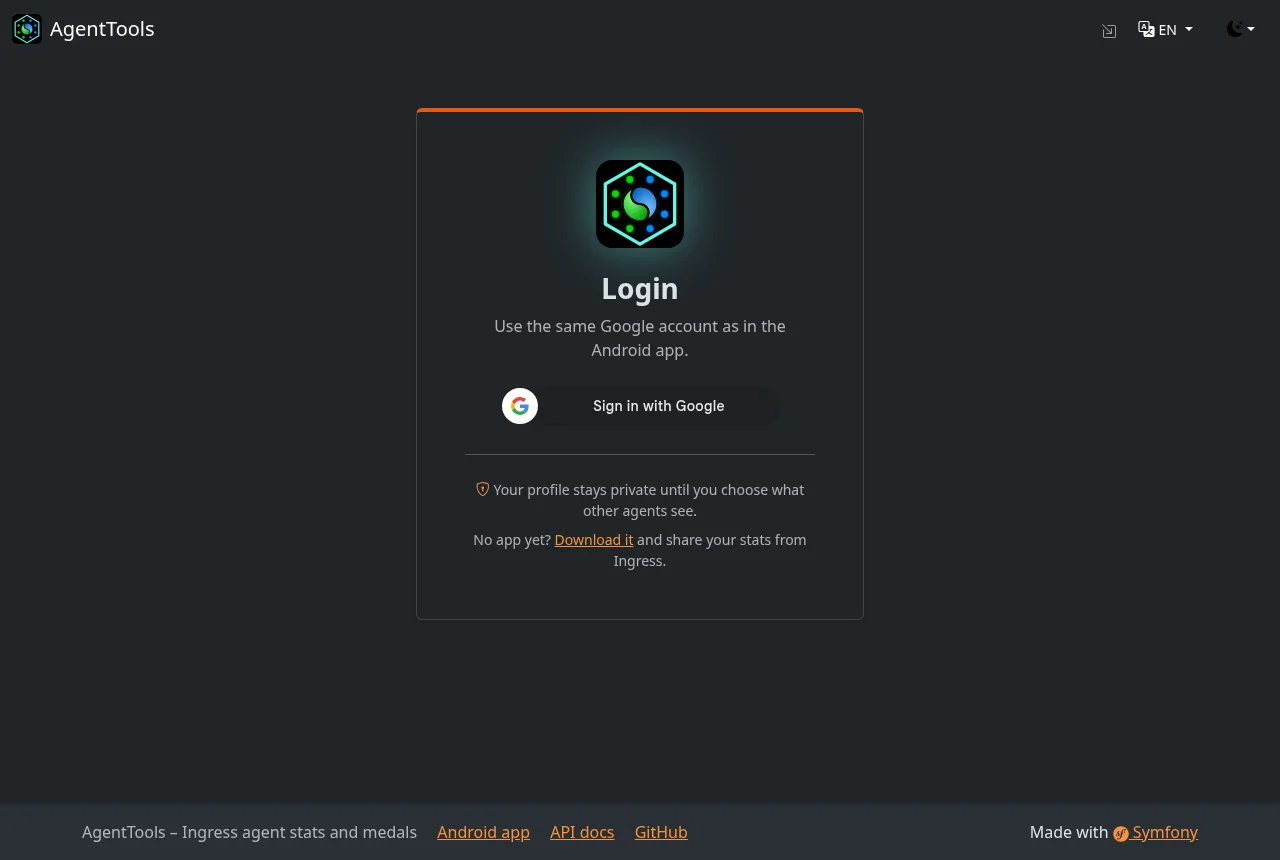
Click Sign in with Google and pick the same Google account as in the app. The first time, the website takes you to your profile to choose what other users see.
The navigation bar has Agents, Links (also signed out) and Admin for admins. On the right: your profile picture with the user menu (My stats, My timeline, My banners, profile, Import stats, sign out), the language (English, German, Spanish) and the light or dark theme.
Home
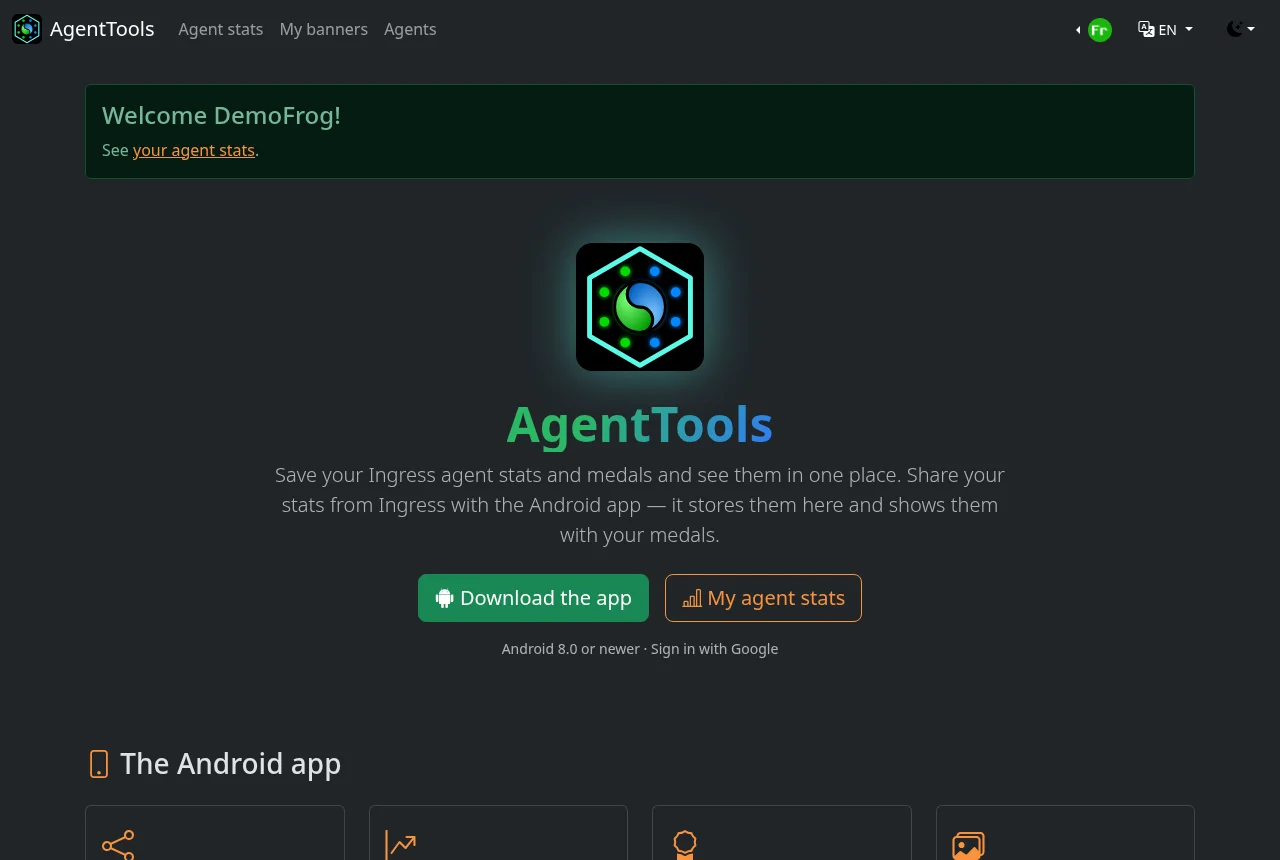
The home page welcomes you, links to your agent stats and has the download link for the app.
Agent stats
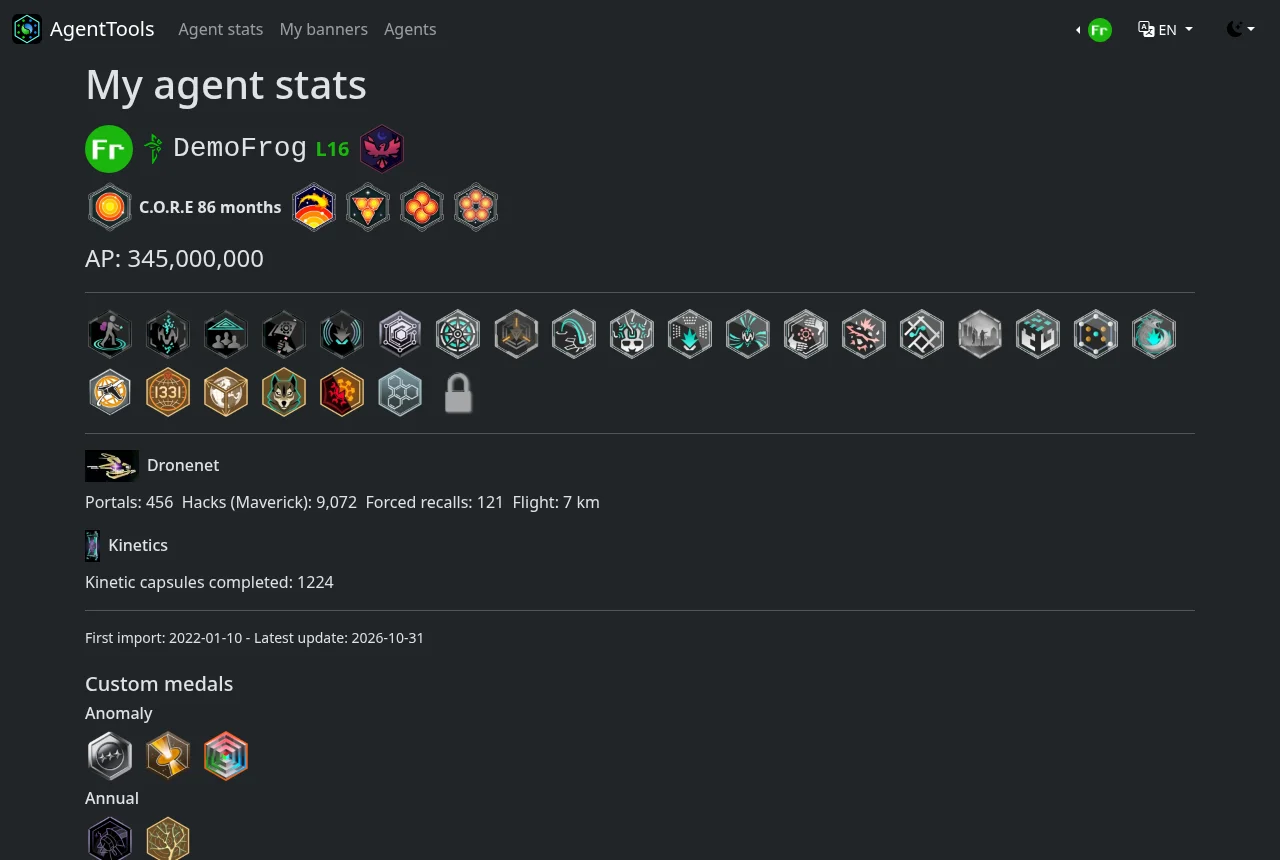
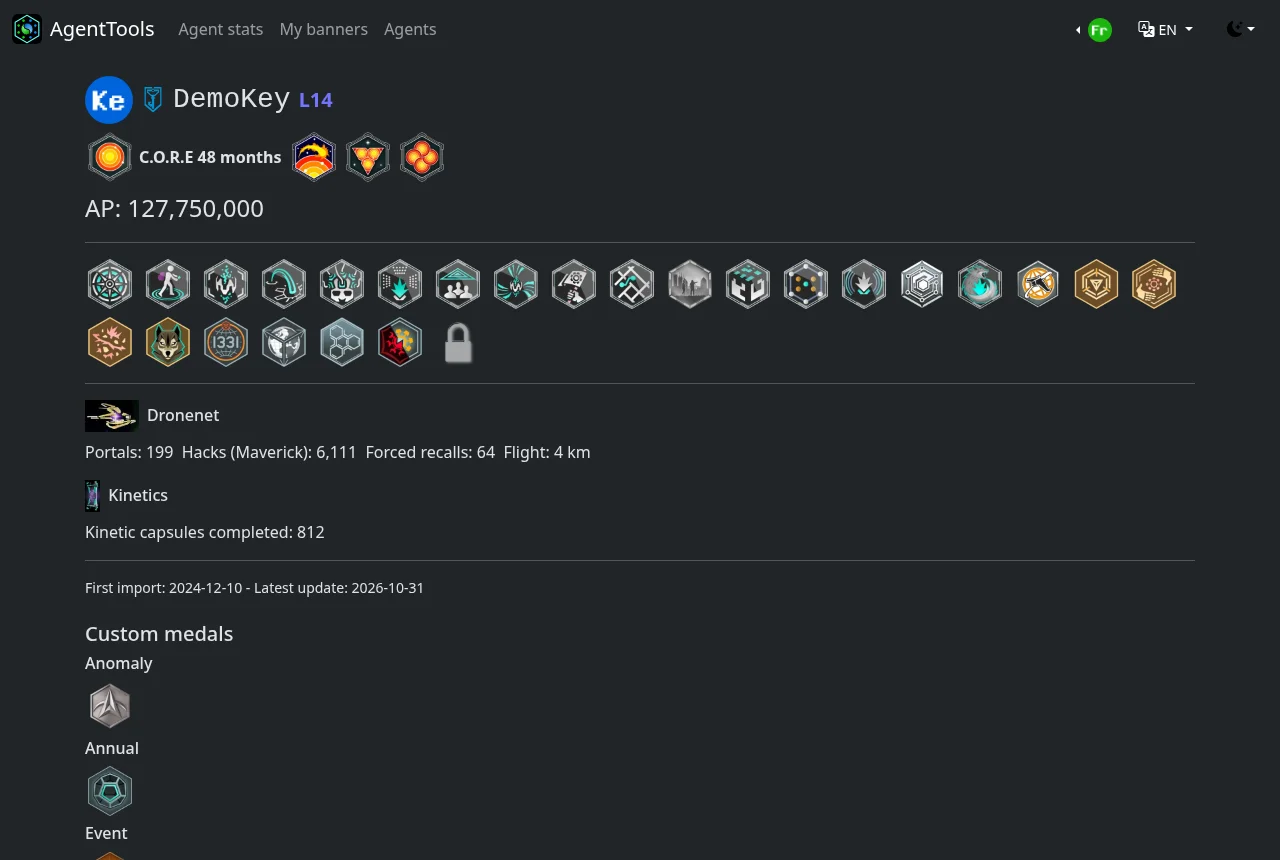
Agent stats shows your newest upload as the app does: agent, faction and level, C.O.R.E months, AP, every medal with its tier, Dronenet and Kinetics, your custom medals and summaries of your banners and timeline.
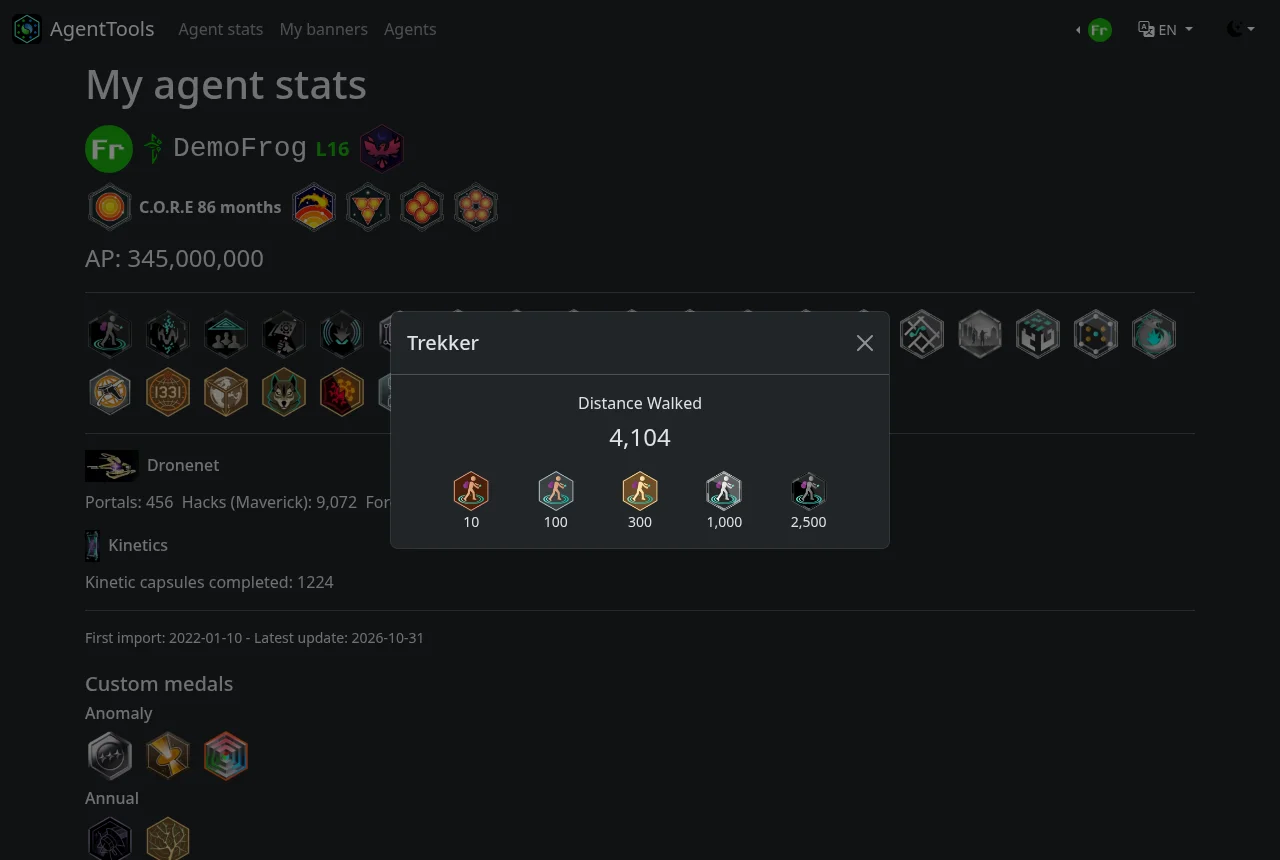
Click a medal for its details: the stat behind it, your value and the value of each tier.
Timeline
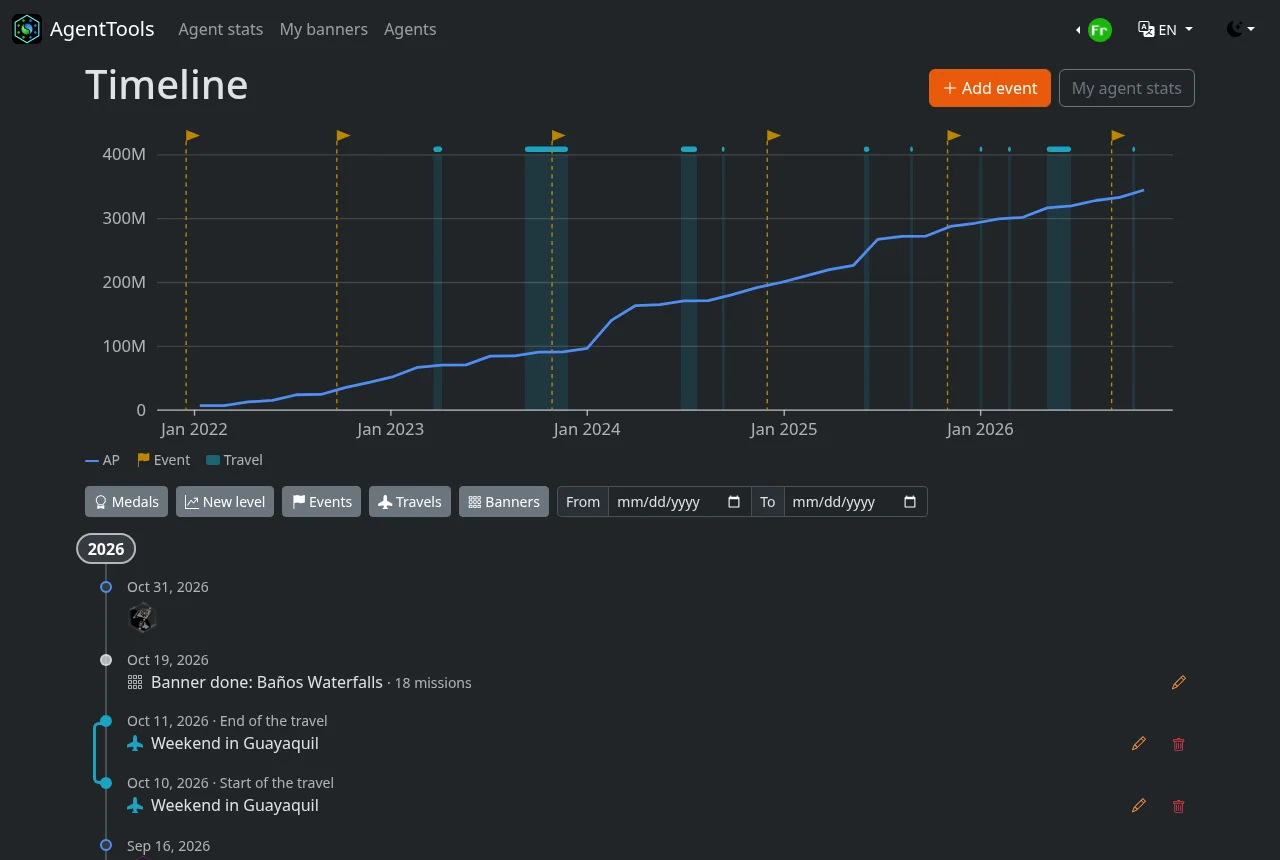
The timeline (Agent stats → Timeline) has your uploads with what changed, your events and travels and your dated banners, newest first and by year, under a chart of your AP. It works like the app's timeline: the same filters, and a date range that zooms the chart.
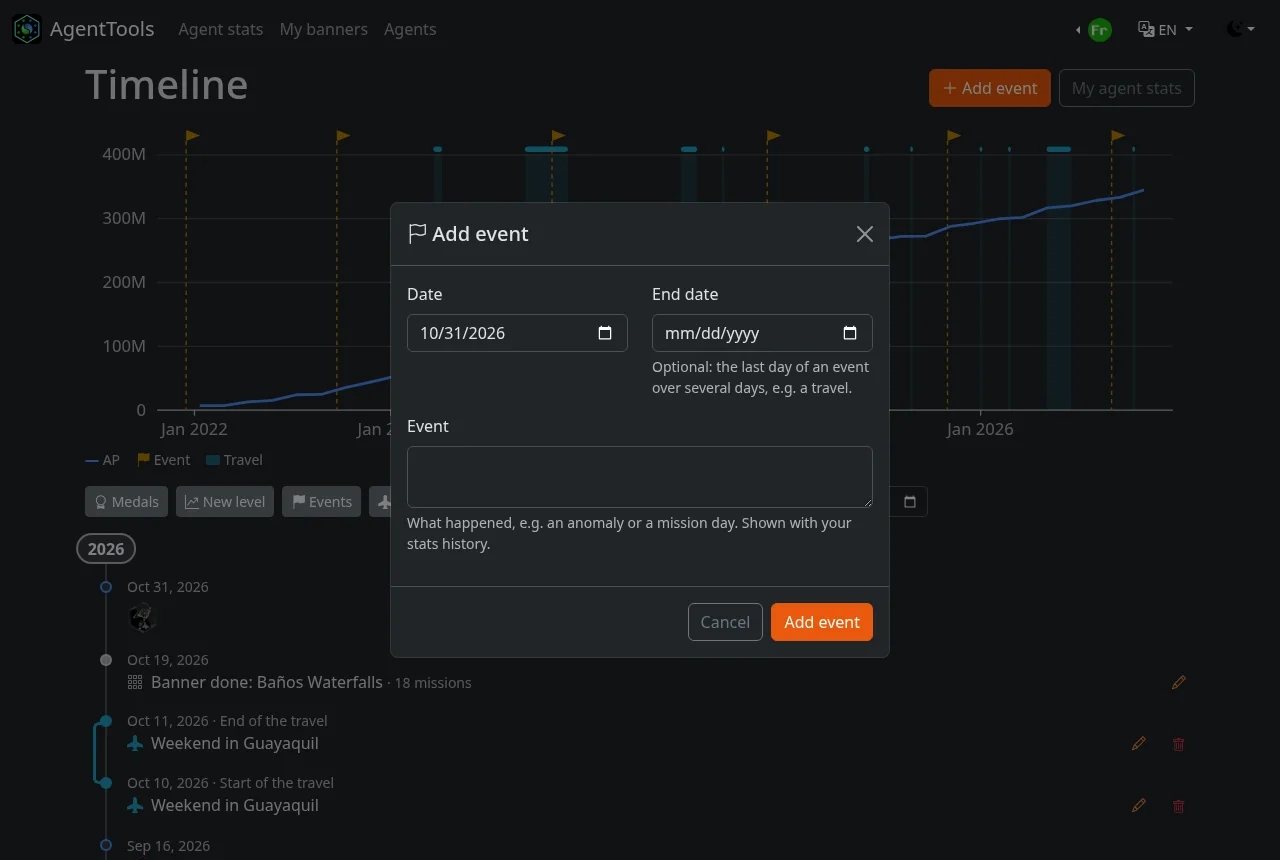
Add event opens a form for a new event: its day, an optional end day for a travel, and what happened. The pencil and bin buttons change or delete an event; on a banner, the pencil changes the day you did it.
Import stats
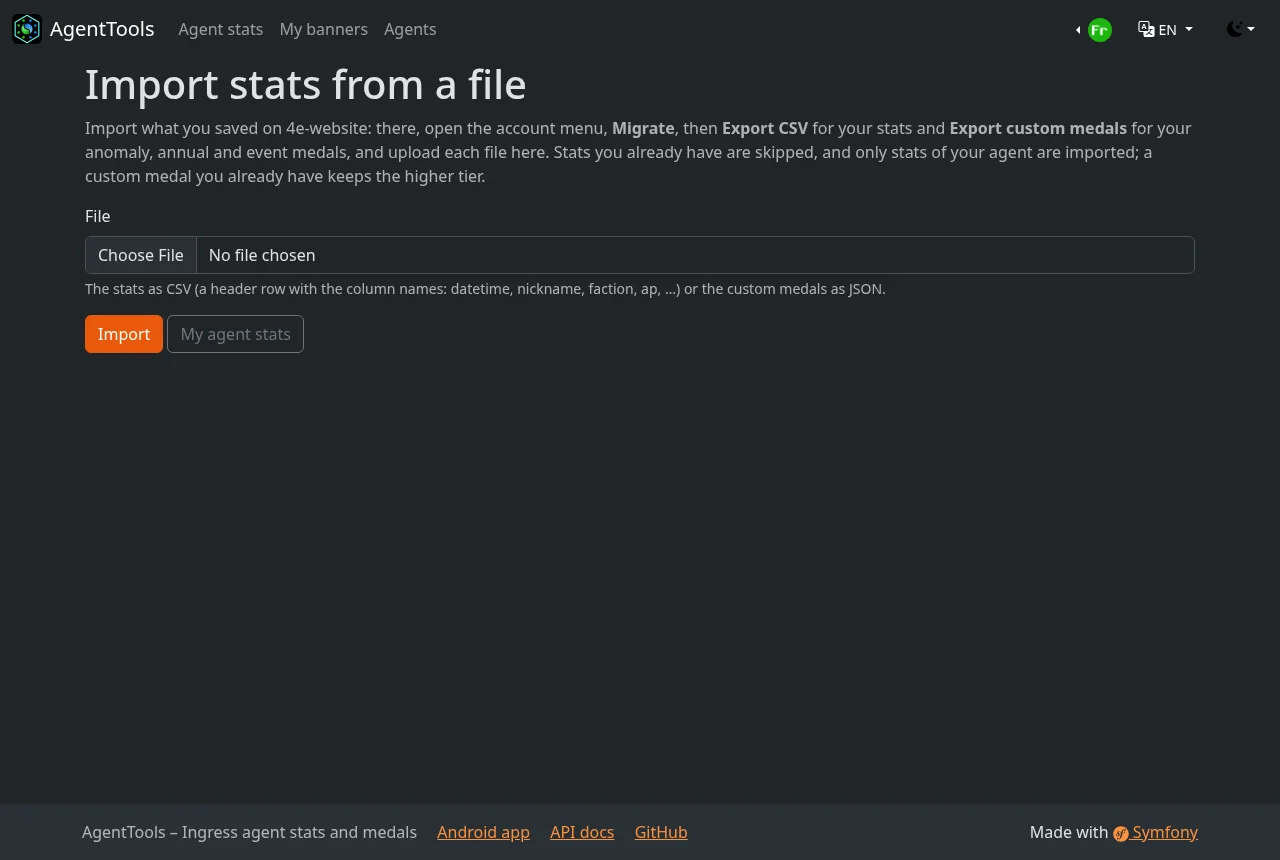
User menu → Import stats imports stats you saved before AgentTools, e.g. on 4e-website (there: account menu → Migrate):
- Stats as CSV (Export CSV): a header row with the column names (
datetime,nickname,faction,ap, …) and one row per upload. Stats you already have are skipped, and only stats of your agent are imported. - Custom medals as JSON (Export custom medals): merged with yours; a medal you already have keeps the higher tier.
The page reports what it imported, what it skipped and anything it didn't recognize.
My banners
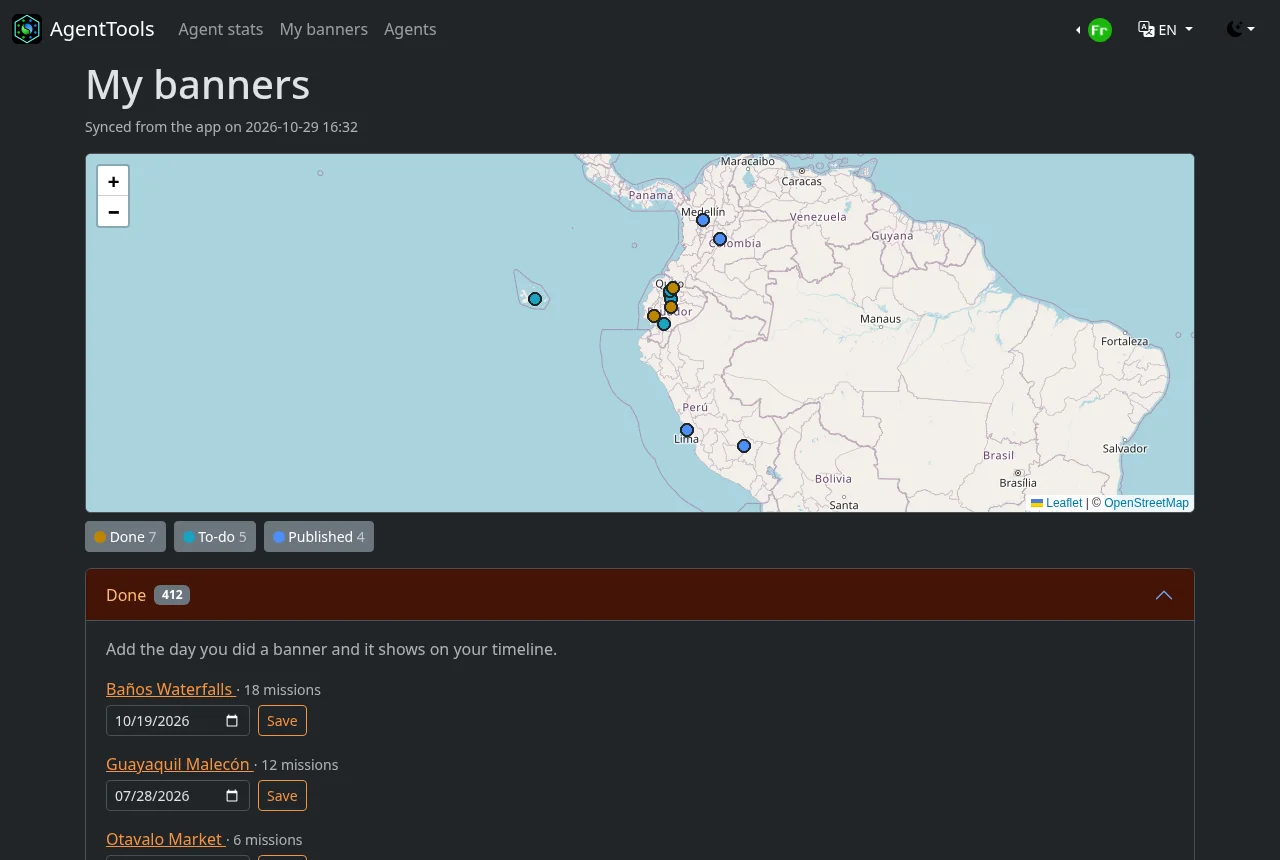
My banners shows the banners the app synced from Bannergress (only the app can sync them): a map with a dot where each banner starts and the lists of done, to-do and published banners. The buttons below the map show or hide each list. In the done list, set the day you did a banner to put it on your timeline.
Agents
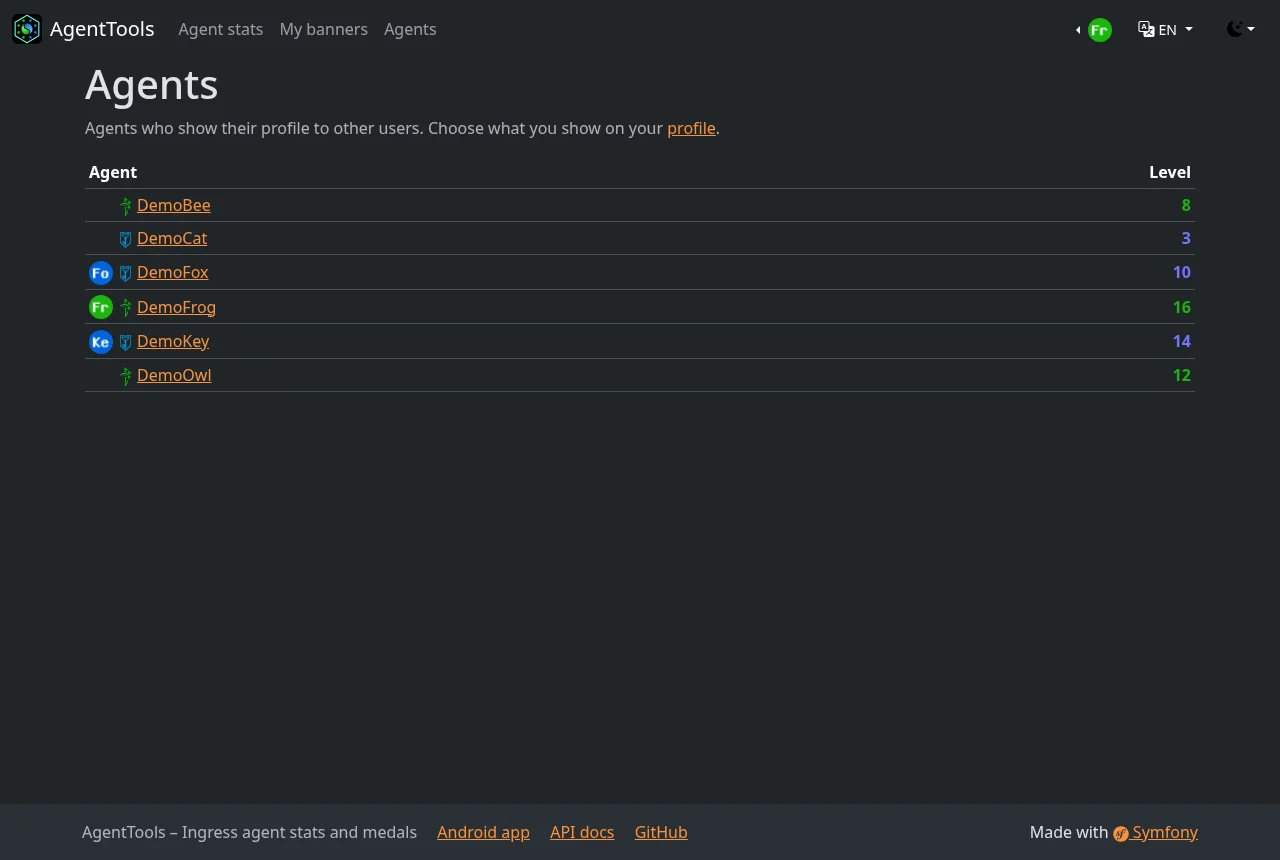
Agents lists the agents who show their profile. Click one to see the parts they show. As on your agent stats, their timeline and their banners are summed up there and have pages of their own.
Links
Links in the navigation bar (no sign-in needed) lists useful sites for Ingress agents by section. A link opens in a new tab. The app has the same list.
The list is docs/links.md in the repository: Suggest a link opens it on GitHub, where anyone can propose a change with a pull request. Every link is checked once a day; see also the list on this site.
Profile
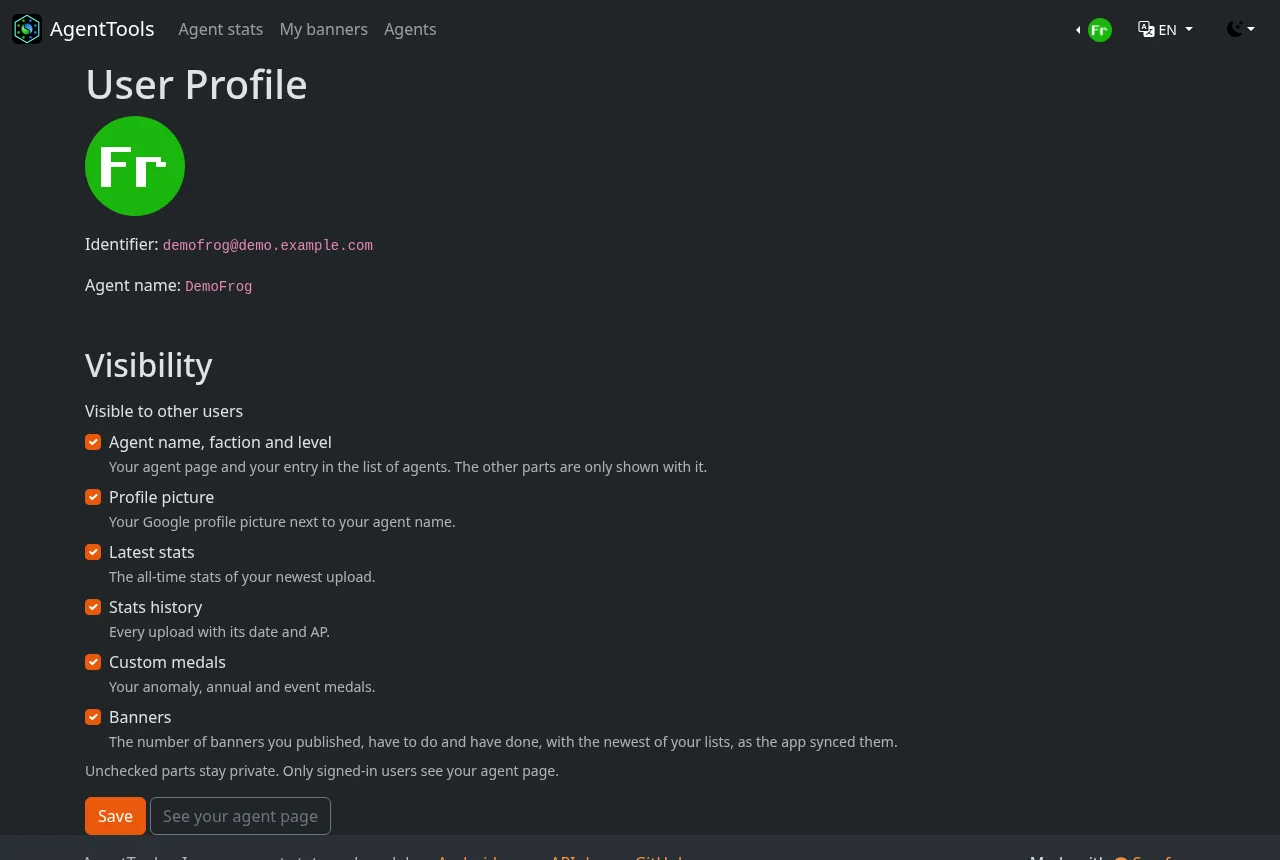
The profile (user menu → Profile) shows your identifier and agent name and the visibility of each part of your profile; see Privacy. Changes here and in the app's settings are the same setting.
For admins
Admins have the Admin menu:
- Agents: every user with their picture, agent name, role, what they show and their level. Admins can add, edit and delete users, e.g. to correct an agent name.
- About and Logview: the system information and the deploy log.
- The profile page shows an API token for the API docs' Authorize button.