
The Android app
The app receives the stats you share from Ingress, saves them to your account and shows them with your medals. Everything it shows is also on the website.
Home
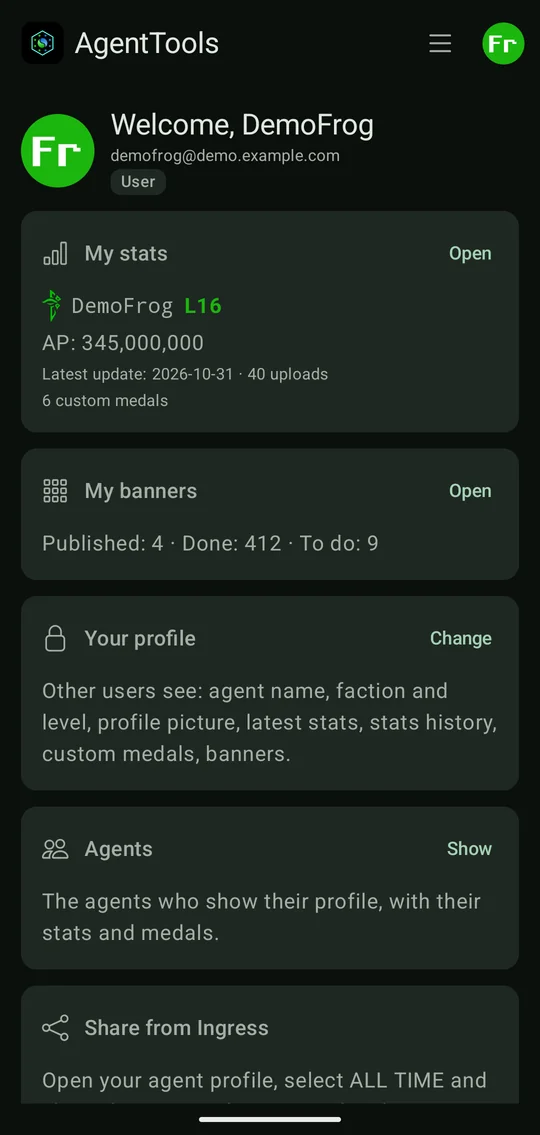
After signing in, the home screen sums up your account:
- My stats: your agent, level, AP, the date of your latest upload and the number of uploads and custom medals. Open shows them in full.
- My banners: how many banners you published, did and have on your to-do list.
- Your profile: what other users see of you. Change opens the settings.
- Agents: the agents who show their profile.
- Share from Ingress: a reminder of how to upload.
At the top, your profile picture opens the account menu (your email and role, My stats, My timeline, My banners, Settings, Sign out), and ☰ opens the feature menu with Agents and Links (signed out, ☰ has Links next to Sign in). Pull down on a screen to reload it.
Share your stats
- In Ingress, open your agent profile and select ALL TIME.
- Tap the share button and choose AgentTools.
The stats are saved right away, even when the app wasn't open. If you aren't signed in yet, they wait until you are. The same stats can't be saved twice, and stats of another agent are refused.
See what changed
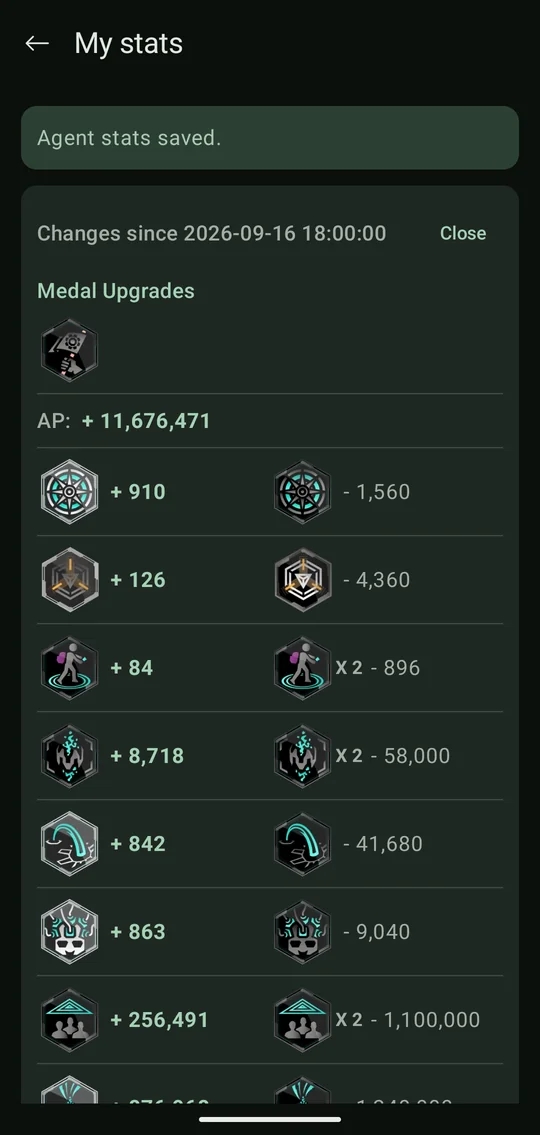
After each upload the app shows what changed since the one before:
- Medal upgrades: the medals that reached a new tier. Onyx medals count again each time the stat reaches the onyx value once more (×2, ×3, …).
- AP gained.
- Every stat that went up, with the medal it counts for and how much is missing for the next tier (the negative number).
- Your new level, when you reached one.
Close hides it; the stats stay saved.
My stats
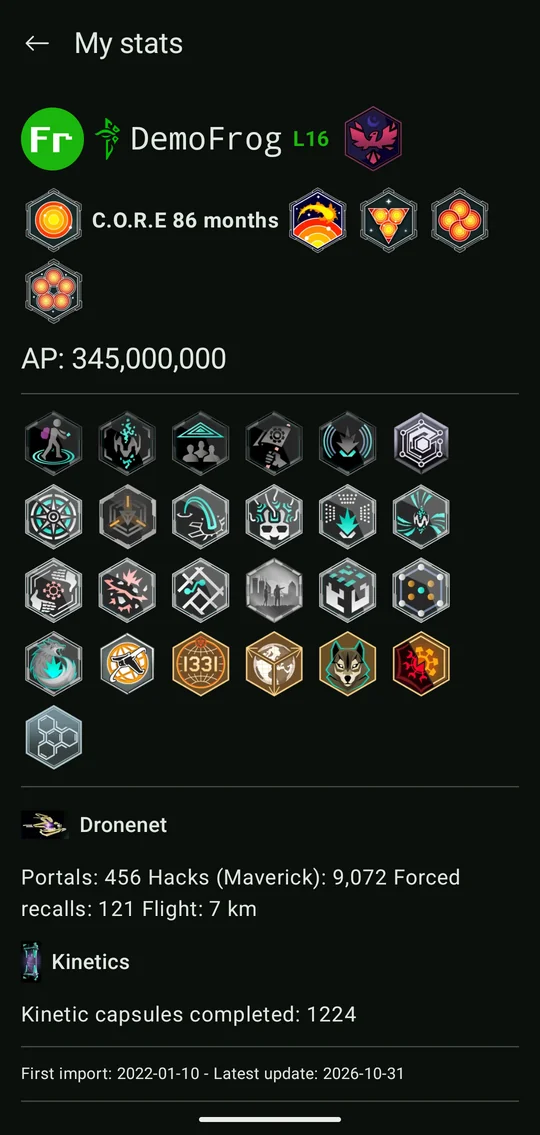
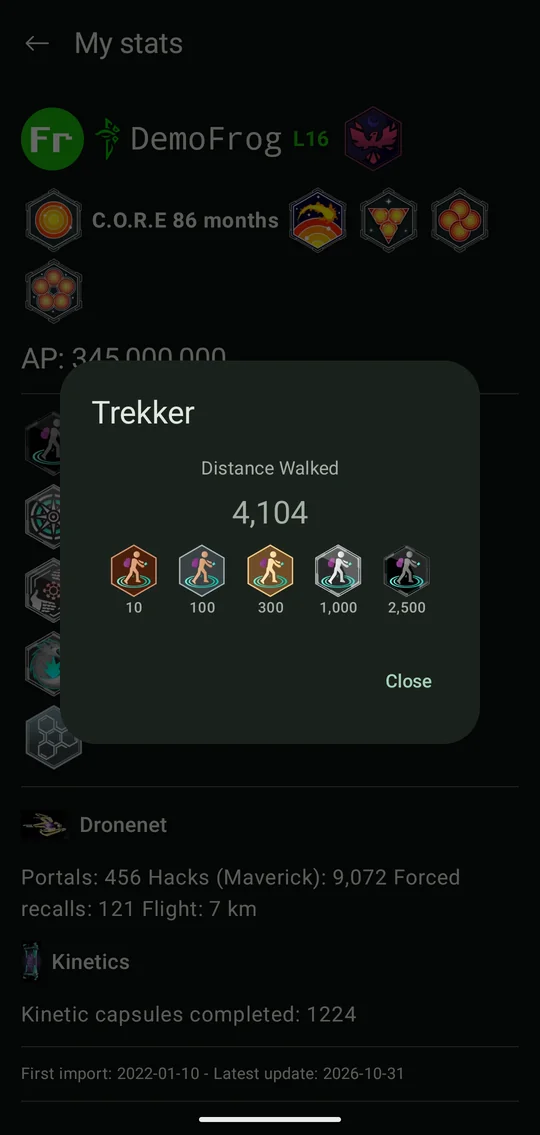
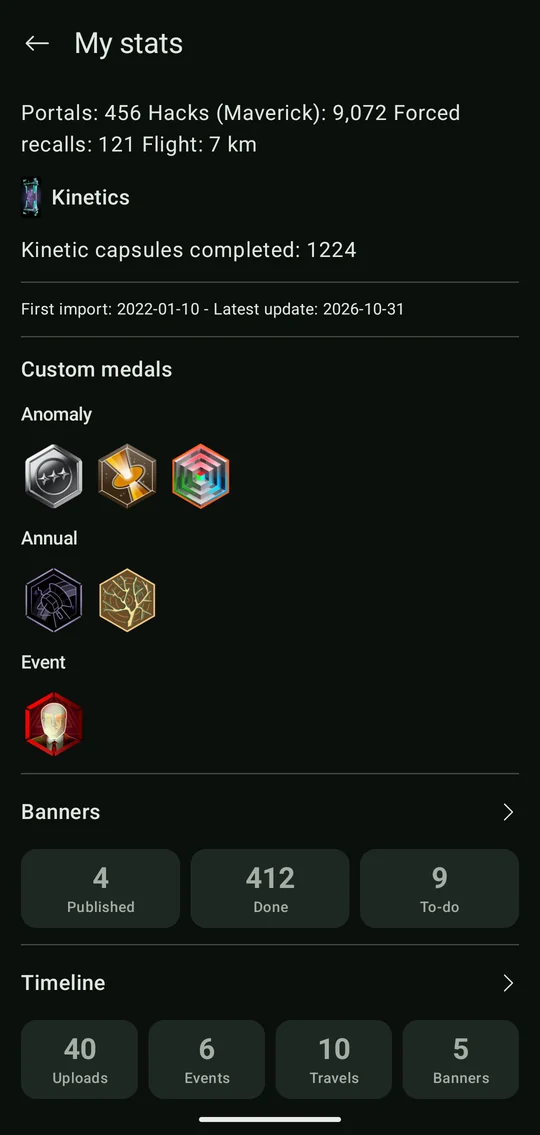
My stats shows your newest upload the way Ingress does:
- your agent name with faction logo and level, and your C.O.R.E subscription months;
- your AP and every medal with the tier your stats reach, from bronze to onyx. Tap a medal for the stat behind it and the values of each tier;
- Dronenet and Kinetics stats, and the date of your first and latest upload;
- your custom medals (anomaly, annual and event);
- a summary of your banners and your timeline (uploads, events, travels and banners). Tap them to open those screens.
Custom medals
Anomaly, annual and event medals aren't in the stats Ingress shares, so the app reads them from screenshots of your medal grid:
- In Ingress, open your agent profile and take screenshots of your medals: the top, the middle and the bottom, so every row is on at least one of them.
- Select all of them in your gallery app and share them with AgentTools.
- Check the medals the app found. Untick wrong ones, and tick the faded ones (the app wasn't sure) that are right.
- Save. The medals are added to the ones you already have, keeping the higher tier.
The screenshots are read on your phone; only the medals you save are uploaded.
Timeline
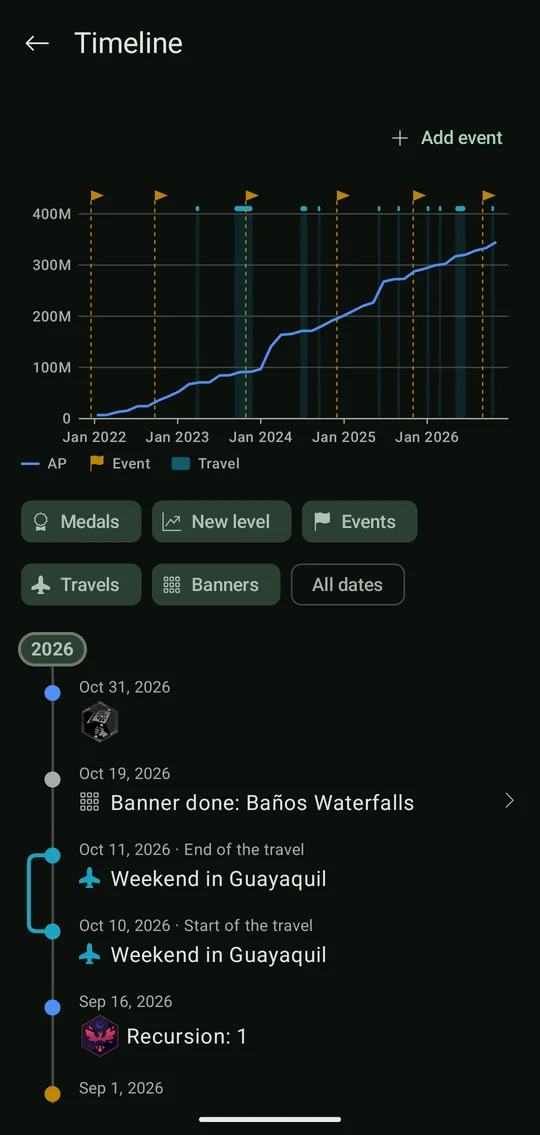
The timeline (My stats → Timeline) tells your Ingress story, newest first, with a label for each year:
- your uploads with what changed: the first upload, new levels, recursions and medal upgrades (uploads where only the AP changed are left out);
- your own events, e.g. an anomaly or a mission day, and travels: events over several days, with a line beside the entries during the trip;
- the banners you did, on the day you did them.
The chart above it shows your AP over time, with a flag for each event and a band for each travel. Tap a mark for its details.
The filters below the chart show or hide medal upgrades, new levels, events, travels and banners. All dates picks a date range; the chart zooms to it.
Add event adds an event with its day and text. Give it an end date to make it a travel. Travels can't overlap. Tap an event to change or delete it.
Banners
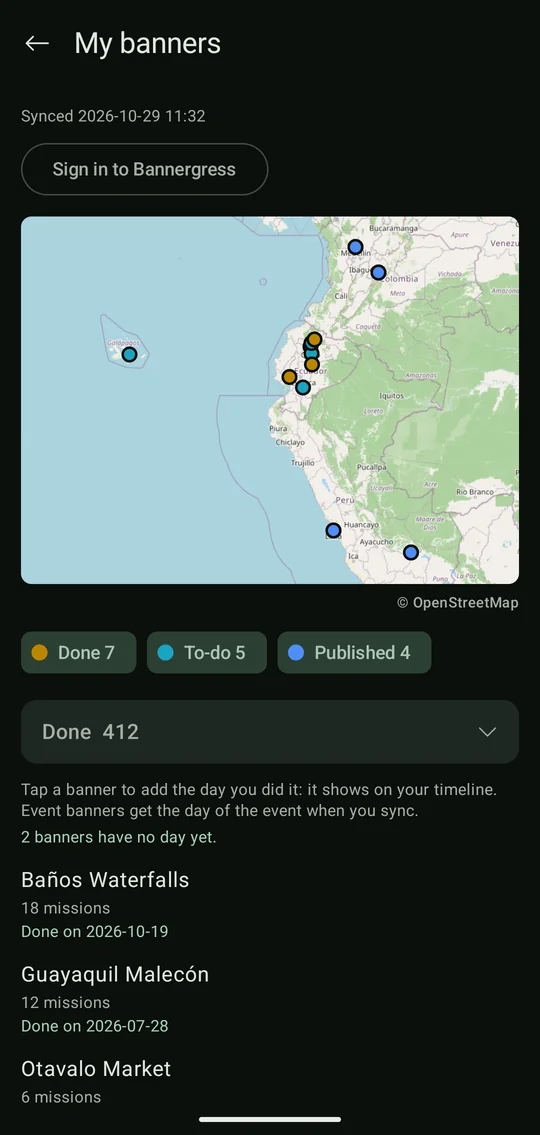
My banners shows your banners from Bannergress:
- Tap Sign in to Bannergress and sign in in the page that opens.
- The app syncs the banners you published (with a mission by your agent), your whole done list and your to-do list, and saves them to your account.
The map has a dot where each banner starts: done, to-do and published in their own colors. The buttons below the map show or hide each list. Below are the lists in the same order, the done one open; tap a heading to fold or open one.
Tap a done banner to set the day you did it: then it's on your timeline. Event banners get the event's first day when they are synced.
Sync again whenever your lists change. Signing out of Google also signs out of Bannergress.
Agents
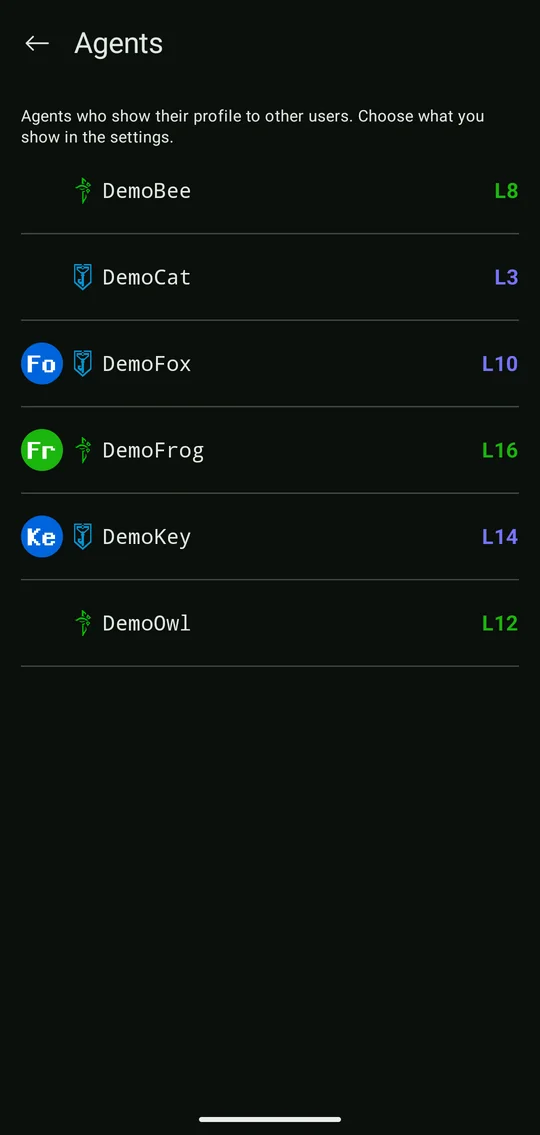
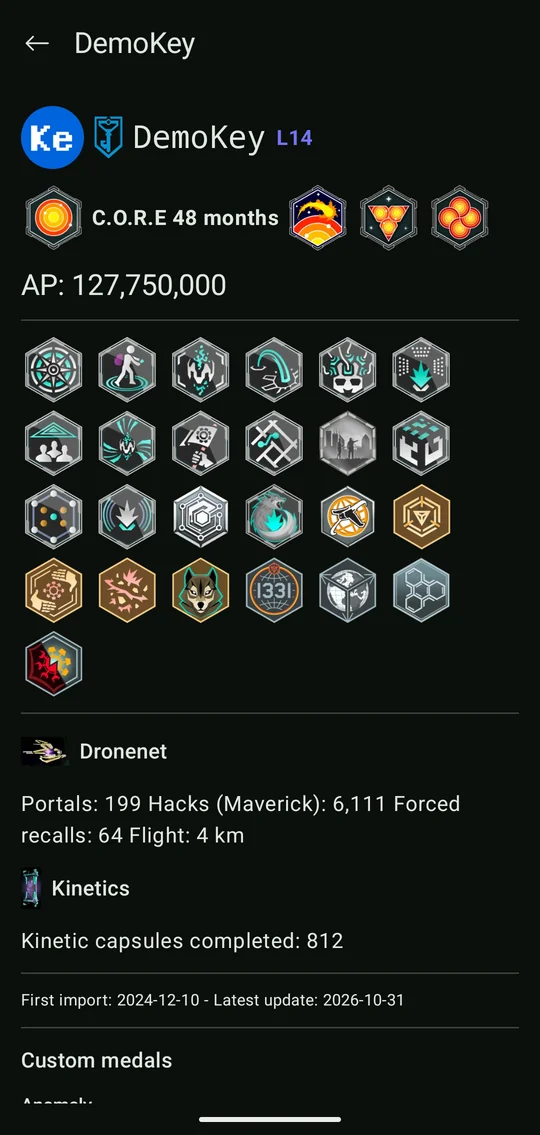
☰ → Agents lists the agents who show their profile, with faction and level. Tap one to see the parts of their profile they chose to show: their latest stats with medals, their custom medals, their stats history and their banners. As on My stats, their timeline and their banners are summed up there: tap Timeline or Banners to open them on a screen of their own.
Admins also have ☰ → Admin agents: every user with what they show.
Links
☰ → Links lists useful sites for Ingress agents by section, also without signing in; tap one to open it in the browser. It is the same list as on the website, docs/links.md in the repository: Suggest a link opens it on GitHub.
The app keeps the last list it loaded: it shows right away and offline, and is loaded again each time you open it or pull down. Offline before the first load there is no list yet.
Settings
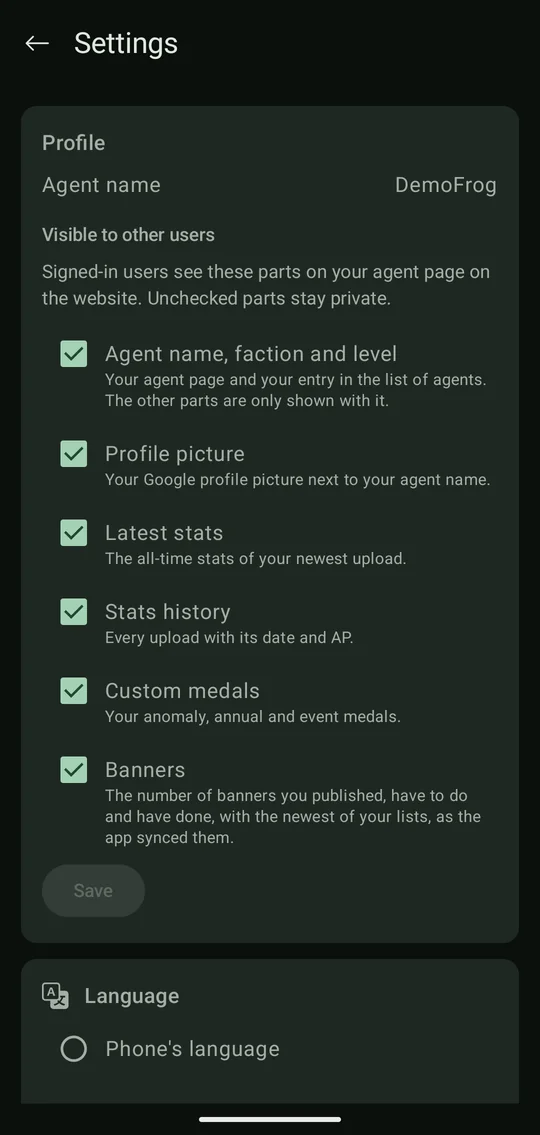
The settings (account menu → Settings) have:
- your agent name, set by your first upload;
- Visible to other users: the parts of your profile other signed-in users see. See Privacy;
- the language: the phone's language, English, German or Spanish;
- the app's version.
The dev and debug builds can also switch the server there.